When I first started in test automation career, my choices were limited. At the time, I picked Selenium WebDriver and thought it worked well.
But after some time, it came with challenges like flaky tests, slow execution, and constant struggles with multiple browser drivers.
Over time, I realized that modern web applications need a faster, more reliable, and developer-friendly testing framework.
That’s when I explored Cypress and Playwright—two tools that transformed end-to-end testing.
- Cypress felt noticeable. It offered real-time execution, built-in debugging, and automatic waiting, creating smoother test writing.
- Playwright took automation testing to the next level with multi-browser support, API testing, and powerful debugging tools.
Both tools were designed to address the issues that Selenium had been dealing with for years. But which is right for you?
If you’re trying to choose between Cypress and Playwright, you’re not alone. This guide will break down their differences, strengths, and best use cases to help you make the right decision.
{{cta-image}}
What is a Playwright?
You might be wondering—If Cypress is so popular and user-friendly, why consider Playwright?
For me, it’s curiosity. As a QA engineer, you must be aware of new technology. When Microsoft released Playwright, I had to check it out. What I discovered was amazing. Playwright is designed to be quick, reliable, and cross-browser compatible.
Unlike traditional testing tools, Playwright directly communicates with the browser over WebSockets (rather than HTTP requests) for faster, more reliable test running.
Here’s what makes Playwright stand out:
- Multi-Browser Support: Run test cases on Chromium, WebKit, and Firefox using a single API for complete cross-browser support.
- Multi-Language Support: TypeScript, JavaScript, Python, C#, and Java are all supported, as opposed to Cypress, which only supports JavaScript.
- Parallel Execution: Runs tests in parallel, reducing runtime.
- API & Network Testing: Allows mocking requests, modifying responses, and simulating network conditions.
- Headless & Mobile Testing: Enables device emulations and headless runs for quicker, effective testing.
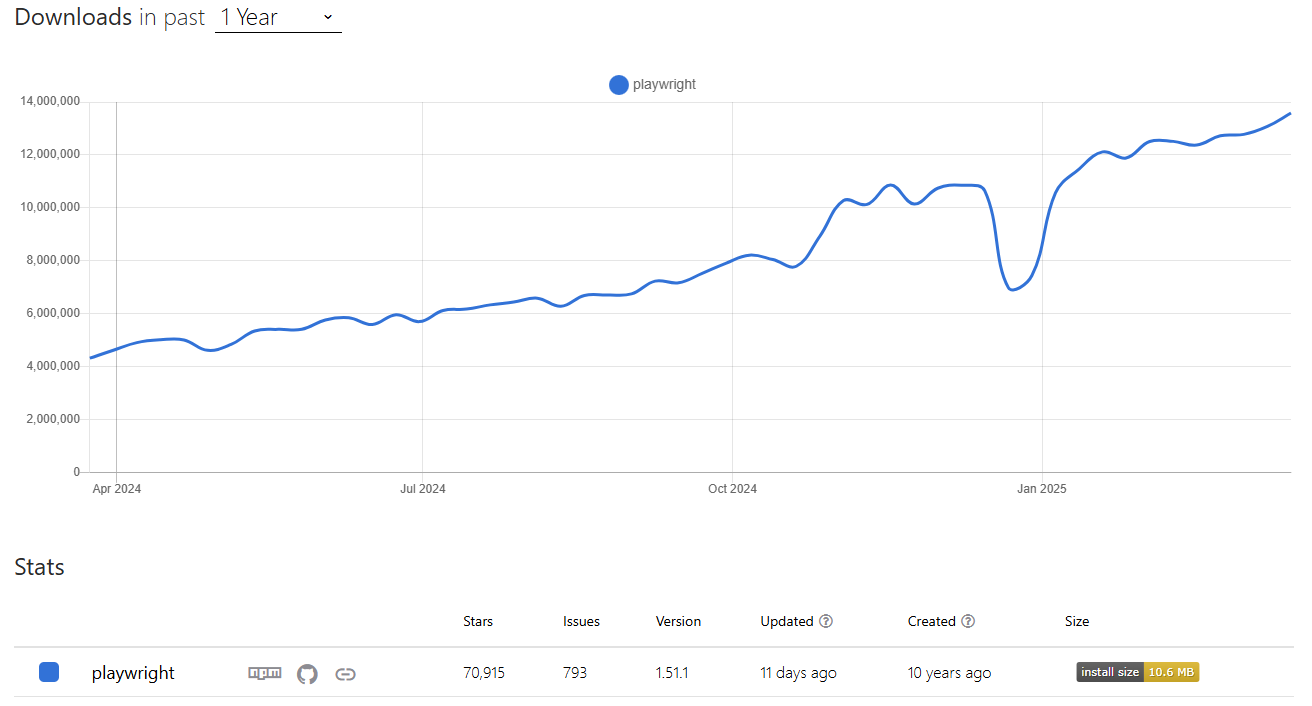
At the time of writing, Playwright has:
- Weekly Downloads: Over 12 million
- Forks: More than 3K
- Stars: Exceeding 70K
Benefits of Playwright
- Cross-Browser Testing: Test on Chromium, WebKit, and Firefox with one API.
- Multi-Language Support: Use JavaScript, TypeScript, Python, C#, or Java for flexibility.
- Parallel Execution: Run tests concurrently to speed up execution.
- API & Network Testing: Mock requests, modify responses, and simulate network conditions.
- Mobile & Headless Testing: Supports device emulation and headless mode for faster testing.
Shortcomings of Playwright
- Steeper Learning Curve: More complex for beginners compared to tools like Cypress.
- External Process Needed: Requires Node.js or another external process to drive tests.
- Limited Debugging: Debugging features aren’t as robust as other frameworks like Cypress.
- Smaller Ecosystem: Playwright’s community and plugin ecosystem are still growing.
What is Cypress?
Cypress isn’t just another testing framework—it’s a game changer in how automated testing is done. What caught my attention was how easy it is to get started.
With a few simple npm commands, you’re ready to test your web applications in minutes, without the complicated setups required by tools like Selenium.
As someone with a background in WebDriver and Java, I found Cypress to be a welcome shift. Its JavaScript and TypeScript support made it an instant alternative to Selenium, offering a much quicker and smoother testing experience.
Cypress works by directly interacting with the Document Object Model (DOM) inside the browser, which makes tests faster and more reliable. Plus, it supports popular browsers like Chrome, Firefox, Microsoft Edge, Electron, and WebKit (through Playwright).
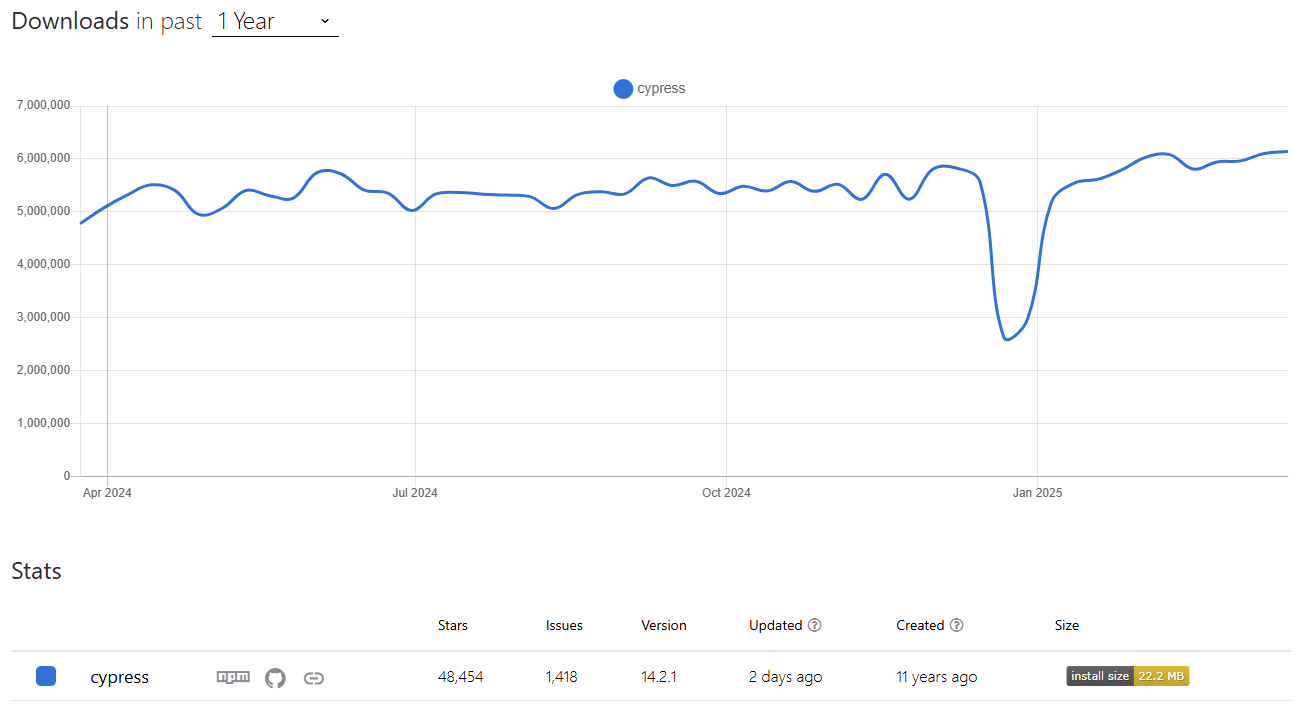
Here’s a quick look at Cypress’s popularity:
- Weekly Downloads: Over 6 million
- Forks: More than 3K
- Stars: Exceeding 48K
Benefits of Cypress
- Easy Setup: Cypress is quick to set up with just a few npm commands, saving time compared to other tools.
- Real-Time Testing: It interacts directly with the DOM, making tests faster and more reliable.
- JavaScript & TypeScript Support: Perfect for modern JavaScript frameworks like React, Angular, and Vue.js.
- Integrated Debugging: The built-in test runner allows for real-time debugging, simplifying the process.
- Cross-Browser Testing: Supports Chrome, Firefox, Edge, and WebKit (via Playwright).
- Strong Community: Cypress has an active community and extensive documentation for support.
Shortcomings of Cypress
- Limited Browser Support: Does not fully support Safari and some other non-Chromium browsers.
- No Multi-Tab Support: Cypress cannot handle multiple tabs or windows in tests.
- Single Language Support: Only supports JavaScript and TypeScript, limiting flexibility.
- Flakiness: Some tests can be flaky in complex UI scenarios with dynamic content.
- Parallel Execution: Parallel test execution requires extra configuration.
{{cool-component}}
Comparison Table: Playwright vs Cypress
This section will compare Playwright vs Cypress across several key areas, including supported languages, cross-browser testing, test execution speed, debugging, error reporting, etc. This comparison will help you understand which popular testing framework aligns best with your project’s needs for end-to-end testing.
| Feature | Playwright | Cypress |
| Language Supports | JavaScript, TypeScript, Python, C#, and Java | JavaScript and TypeScript |
| Browser Supports | Strong support for Chromium, Firefox, and WebKit | Limited Chromium-based browsers, with experimental support for Firefox |
| Test Execution Speed | Faster due to headless mode and efficient parallel execution | Can be slower, especially with large test suites |
| Debugging and Error Reporting | Provides detailed logs, stack traces, and screenshots | Offers time travel, snapshots, and powerful error messages |
| Open Source | Yes | Yes |
| Setup Difficulty | Easy to setup | Easy to setup |
| Framework Supports | Mocha, Jest, Jasmine, Cucumber | Mocha |
| CI/CD Integration | GitHub Actions, Circle CI, Bitbucket, AWS, Gitlab | GitHub Actions, Circle CI, Jenkins, Bitbucket, AWS, Gitlab |
| File Download | Directly manage downloads | Need to intercept with HTTP request to download the file |
| Visual Comparison | Built in features | Relies on third-parparty libraries |
For more insights on similar topics, check out more of Bug vs. Defect to enhance your understanding of software issues.
Playwright vs Cypress: What’s the Difference?
While both Playwright and Cypress are popular JavaScript-based end-to-end testing frameworks, they differ in how they handle browser support, test execution, scalability, and automation flexibility. Choosing the right one depends on your project’s complexity, tech stack, and CI/CD needs.
1. Architecture: Cypress vs Playwright
Cypress and Playwright are widely used for end-to-end web testing, but their architectural designs set them apart in terms of execution speed, flexibility, and control.
Cypress Architecture
Cypress is purpose-built for developers and tightly integrates with the browser environment to offer real-time feedback and rich debugging capabilities.
- It runs a Node.js server that communicates with the browser using WebSockets through a proxy.
- Test commands are executed within the browser itself, eliminating driver dependencies and reducing latency.
- This unique architecture grants direct access to browser internals like DOM, local storage, cookies, network traffic, and window objects—streamlining test creation and inspection.
Playwright Architecture
Playwright uses a client-server model with communication over WebSockets, enabling high-speed test execution and remote control of browsers.
- Test scripts send JSON-based commands through a persistent WebSocket connection.
- The connection stays active throughout the test, allowing continuous command execution until it is manually closed.
- This uninterrupted channel enables high performance, efficient resource use, and better control across multiple browser contexts and tabs.
2. Installation & Configuration
Setting up your testing framework correctly is key to building a reliable automation pipeline. Let’s look at how Cypress and Playwright differ in their installation and setup processes.
Cypress Setup
Cypress is known for its straightforward installation process:
- Pre-requisite: Ensure Node.js is installed.
- Initialize your project:
npm init
npm i cypress --save-dev
Installation Output:
alphabin@Alphabins-MacBook-Pro cypress-demo % npm i cypress --save-dev

added 175 packages, and audited 176 packages in 2m

40 packages are looking for funding
  run `npm fund` for details

found 0 vulnerabilities
Launch Cypress Test Runner:
npx cypress openFirst-Time Cypress Launch Output:
alphabin@Alphabins-MacBook-Pro cypress-demo % npx cypress open
It looks like this is your first time using Cypress: 14.2.0

✔  Verified Cypress! /Users/alphabin/Library/Caches/Cypress/14.2.0/Cypress.app

Opening Cypress...

DevTools listening on ws://127.0.0.1:61270/devtools/browser/19170ca5-bf64-47e8-94ea-84b4b74d07c2
Cypress sets up quickly and is ready for testing with a visual UI for interactive test execution.
Playwright Setup
Playwright provides an interactive CLI setup and supports broader browser automation from the start.
- Prerequisites: Node.js must be installed.
- Installation Command:
npm init playwright@latestInteractive Setup Output:
alphabin@Alphabins-MacBook-Pro playwright-demo % npm init playwright@latest
Need to install the following packages:
[email protected]
Ok to proceed? (y) y

> npx
> create-playwright

Getting started with writing end-to-end tests with Playwright:
Initializing project in '.'
✔ Do you want to use TypeScript or JavaScript? · JavaScript
✔ Where to put your end-to-end tests? · e2e-tests
✔ Add a GitHub Actions workflow? (y/N) · false
✔ Install Playwright browsers (can be done manually via 'npx playwright install')? (Y/n) · true
Initializing NPM project (npm init -y)…
Wrote to /Users/alphabin/Downloads/playwright-cypress/playwright-demo/package.json:

{
  "name": "playwright-demo",
  "version": "1.0.0",
  "main": "index.js",
  "scripts": {
    "test": "echo \"Error: no test specified\" && exit 1"
  },
  "keywords": [],
  "author": "",
  "license": "ISC",
  "description": ""
}

Installing Playwright Test (npm install --save-dev @playwright/test)…
Playwright installs required dependencies and browsers, offering cross-browser testing out of the box (Chromium, Firefox, and WebKit).
3. Running Tests and Debugging
Cypress
Cypress is designed with an interactive testing experience in mind. Developers can visually see each step of the test and debug in real time.
- Run test cases –
import 'cypress-xpath';


describe('Cypress Example Test', () => {
    it('should load the login page and check the title', () => {
      cy.visit('https://demo.alphabin.co');
      cy.get('[class="cursor-pointer hidden lg:block w-10 h-10"]').click({ force: true });
      cy.url().should('include', 'login');
    });

    it('should type in an input box and submit a form', () => {
      cy.visit('https://demo.alphabin.co', { timeout: 10000 });


      cy.get('[class="cursor-pointer hidden lg:block w-10 h-10"]').click({ force: true });

      cy.get('[name="email"]').type('[email protected]');
      cy.get('[name="password"]').type('12qw!@QW');
      cy.xpath('//button[normalize-space()="LOG IN"]').click();

      cy.contains('Logged in successfully').should('be.visible');
    });
});- This launches the Cypress Test Runner, where you can select your spec file, observe test execution in the browser, and inspect DOM snapshots at each step.
- Cypress uses a “time travel” feature—allowing you to hover over each test step and view the app’s state at that moment.
- The developer console and browser tools are fully accessible during test execution, enabling quick debugging of network requests, local storage, and DOM behavior.
Playwright
Playwright runs tests via a headless or headed mode and offers a suite of CLI tools for efficient debugging.
- Run test cases –
econst { test, expect } = require('@playwright/test');

test.describe('Playwright Login Test for Alphabin Demo', () => {

  test('should fill login form and submit successfully', async ({ page }) => {
    await page.goto('https://demo.alphabin.co', { timeout: 10000 });

    await page.locator('[class="cursor-pointer hidden lg:block w-10 h-10"]').click({ force: true });
    await expect(page).toHaveURL(/.*login/);

    await page.locator('[name="email"]').fill('[email protected]');
    await page.locator('[name="password"]').fill('12qw!@QW');

    // Using XPath
    await page.locator('//button[normalize-space()="LOG IN"]').click();

    // Assert success message
    await expect(page.locator('text=Logged in successfully')).toBeVisible();
  });
});
Playwright includes:
- Playwright Inspector: a GUI debugger with step-through controls and DOM preview.
- Trace Viewer: view snapshots, console logs, and network traffic for failed tests.
- VS Code Extension: Integrated test runner and debugger inside the editor.
- Built-in support for video recording and screenshots for each test.
4. Trace test execution
Trace is a powerful tool for debugging and understanding the execution of your tests. It provides a detailed, step-by-step view of your test run, allowing you to identify and fix issues more efficiently.
With Tracing, you can capture screenshots, view the state of your application at each test step, and even replay test runs to see exactly what happened.
Cypress
Cypress provides built-in time travel and snapshot capabilities. You can view the state of your application at each test step in the Cypress Test Runner.
Cypress automatically takes screenshots on test failures and can record videos of test runs.
To enable detailed tracing in Cypress, including additional configuration for screenshots and videos, you can adjust your cypress.config.js:
module.exports = {
  screenshotOnRunFailure: true,
  video: true,
  screenshotsFolder: 'cypress/screenshots',
  videosFolder: 'cypress/videos',
  e2e: {
    setupNodeEvents(on, config) {
      on('after:screenshot', (details) => {
        // Implement custom logic if needed
      });

      on('after:spec', (details) => {
        // Implement custom logic for videos if needed
      });
    }
  }
};
Playwright
Playwright provides trace viewer functionality that allows you to trace your tests, capture screenshots, and view the step-by-step execution of your tests. This helps in debugging complex issues.
To enable tracing, you can configure it in the playwright config file:
export default defineConfig({
    use: {
        trace: 'on-first-retry' // 5-6 options available to trace our tests
    }
5. Parallel Execution
Parallel execution of tests is a powerful feature that can significantly reduce the overall testing time. By running multiple tests concurrently, you can speed up your testing process and improve efficiency.
Cypress
Cypress supports parallel test execution through its Dashboard service, which distributes tests across multiple machines to run in parallel. This requires setting up the Dashboard and configuring your CI pipeline accordingly. We can execute cypress tests in parallel using cypress run –record –parallel command.
Playwright
Playwright supports parallel test execution natively. You can configure the number of workers in your Playwright config file and simply execute tests using the npx playwright test command:
export default defineConfig({
    workers: 4
})
{{cta-image-second}}
Closing Notes
The quality and reliability of web apps are greatly affected by the choice of the right testing tools and testing framework. In the playwright vs cypress debate, the Playwright’s advanced features, including parallel execution, tracing, and debugging, ensure complete coverage and quicker release cycles. It’s a future-proof option for demanding testing requirements because of its stable API and continuous development.
The ease of use and robust debugging capabilities of Cypress can increase developer productivity by reducing the time required to find and resolve problems. Its real-time feedback is very helpful in providing a seamless user experience, improving program stability, and identifying problems early on.
Businesses can improve application performance, simplify testing processes, and generate better results by choosing the tool that best fits their team’s experience and project objectives. Contact us for more information on testing strategy.